
Widget Setup Guide
Follow these three steps to add your widget to OBS or Streamlabs and make sure it runs correctly on your stream.
On the website
-
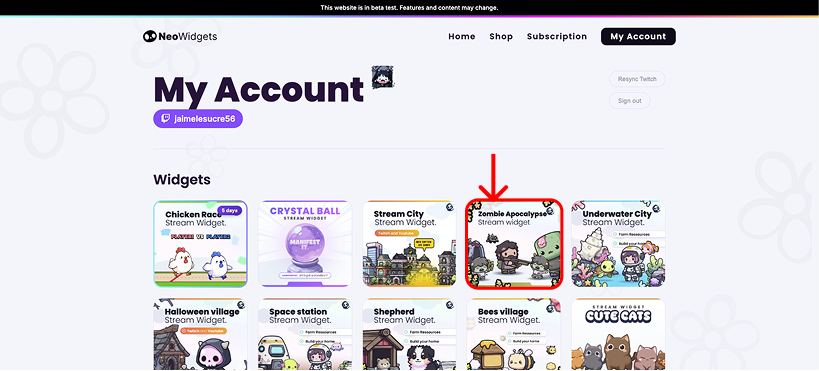
From your account page, select a widget by clicking on it.
-
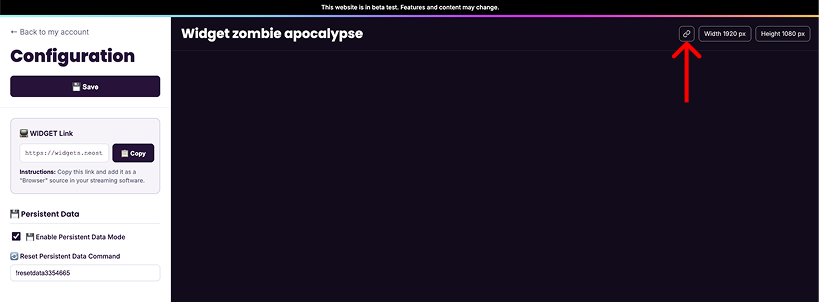
From this page, click on the small chain icon (or simply copy the link displayed under: Widget link).
From your streaming software
-
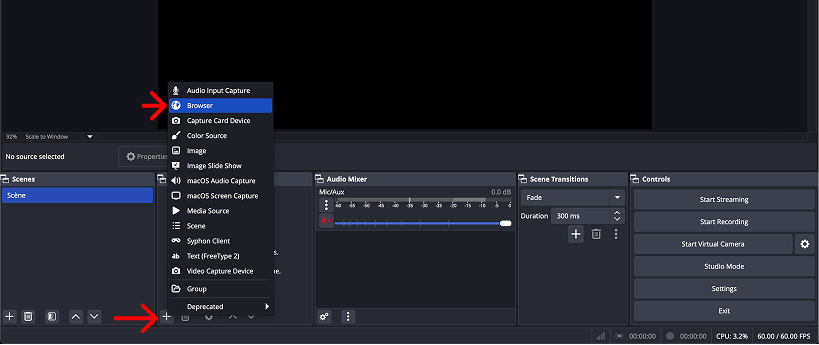
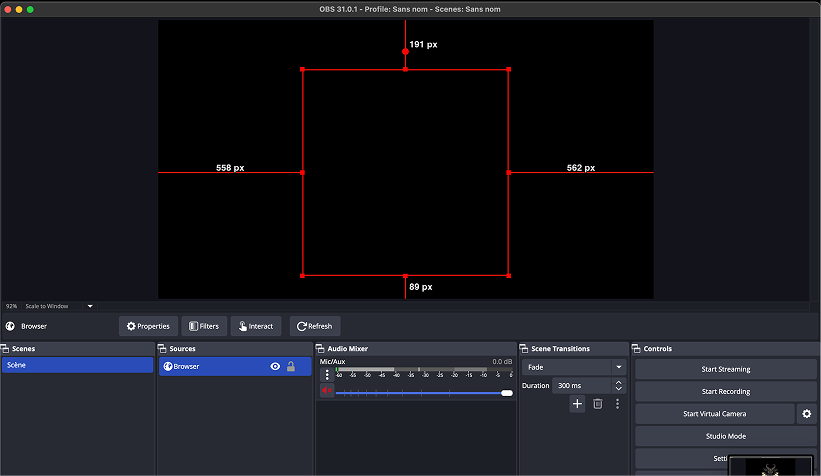
Open OBS or Streamlabs on your computer and add a new source: Browser.
-
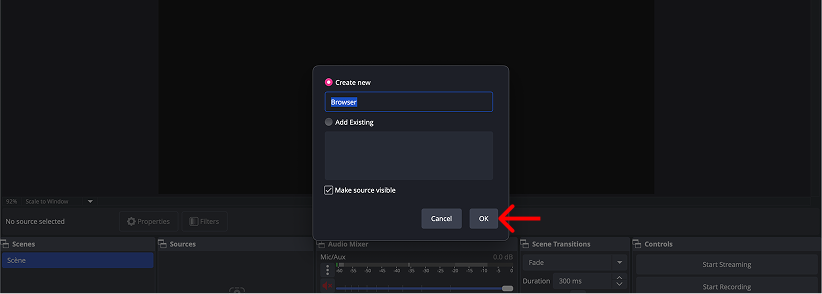
Give your source a name and click Ok.
-
Paste the link you copied from the website into the text field. (If there is already a link, replace it with the new one.) Adjust the width and height of your source to its default values:
Height:
1080· Width:1920
Some widgets use different values. You can find these on your widget's page on the website. Otherwise, these default values will always work.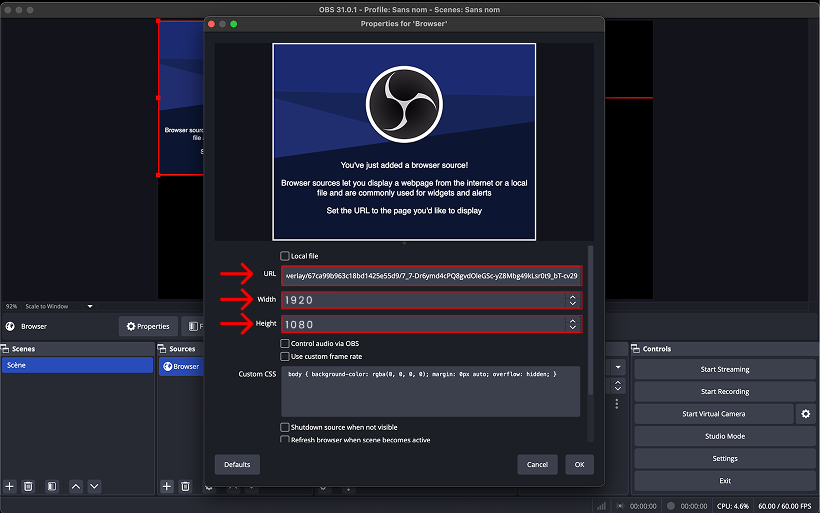
-
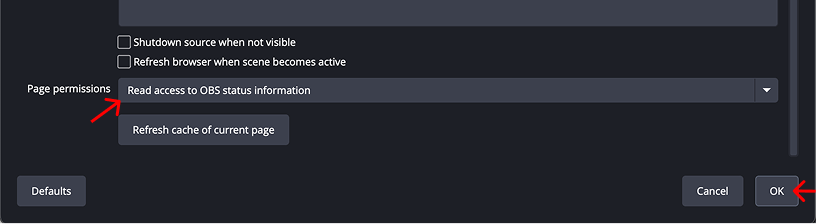
At the bottom of this page, make sure you have selected the option Read access to OBS status information. Then click OK. You should see the widget in your scene list 😎 There's only one step left.
Disable browser source hardware acceleration
-
Open the preferences page on Streamlabs or OBS.

-
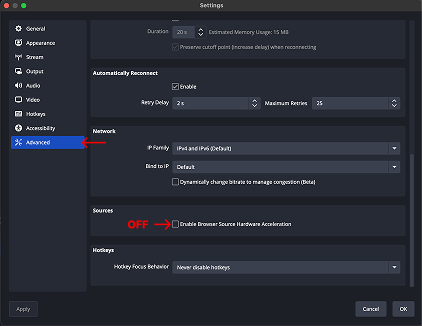
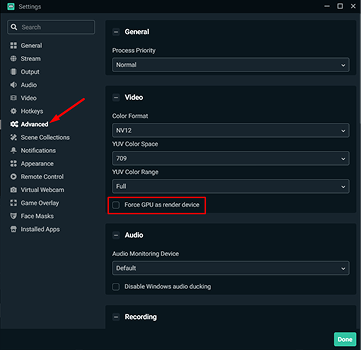
Select Advanced Settings and scroll all the way down the page. The option to disable depends on your software:
-
On OBS
Make sure the option Enable browser source hardware acceleration is disabled.
-
On Streamlabs
Make sure the option Force GPU as render device is disabled.
-
Finish setup
All you have to do now is restart OBS/Streamlabs for the settings to take effect 😊 The widget setup is complete! You should see your character appear now!
-