
Stream Elements Import
Import a widget you purchased on Stream Elements by uploading its .url file to your NeoStreamShop account.
After downloading your widget from Etsy, follow the Import Your Widgets from Etsy guide to activate it on your account.
On your computer
-
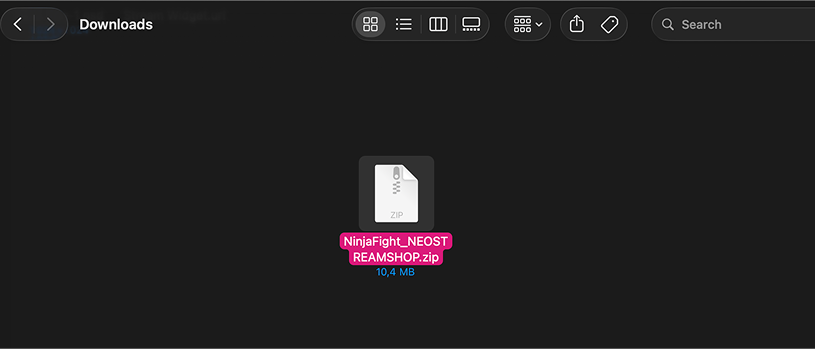
Find or download the .zip folder containing your widget files.
-
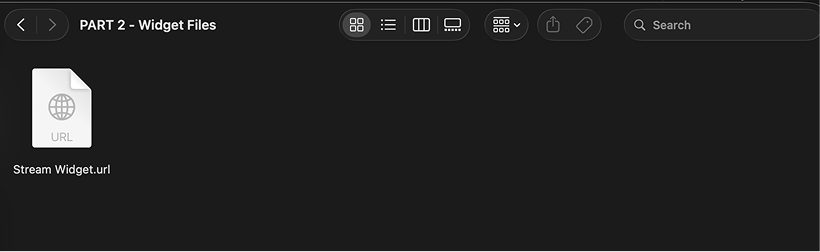
Open the .zip folder to find your widget's .url file, usually named Stream widget.url or Widget link.url.
On the website
-
Go to your account page on the website. Sign in if needed.
-
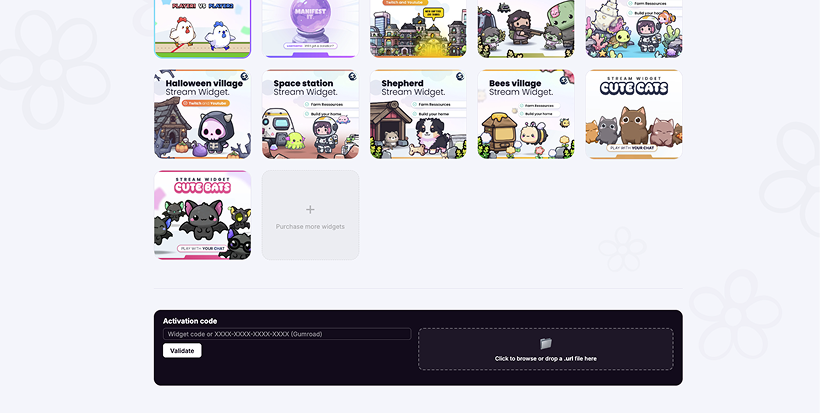
Scroll to the bottom of this page to find the Activate code section, then click the button to add a .url file.

-
Your file explorer should open. Select the .url file, click OK, and the widget will be added to your account automatically.
Once the widget appears on your account, follow the Widget Setup Guide to add it to OBS or Streamlabs.